How to Organize Photos, Documents, and Downloads Faster Using Bulk Rename Utility – Step-by-Step Guide


Asif Mohammad Sovon
Asif Mohammad Sovon, IT Assistant at Bangladesh Air Force and Fileion tech writer, simplifies tech t...
Have you ever opened a folder only to find hundreds of files named "IMG_5678" or "Document_1"? Looking for one specific file in that mess is frustrating and wastes your time. Sorting through digital clutter can feel like an endless chore.
Staying organized is essential for productivity. Whether you are managing work projects or sorting years of family photos, clear file names make life easier. You can find what you need in seconds, not minutes.
In this guide, you will learn how to use a powerful tool to rename large groups of files at once. We will show you how to transform a chaotic download folder into a well-organized library.
Let’s dive into the basics before proceeding to the hands-on steps.
What is Bulk Rename Utility?
Bulk Rename Utility is a lightweight software for Windows. It allows you to rename thousands of files and folders simultaneously based on specific rules. While the interface looks complex at first, it is designed for speed and precision.
Students, photographers, and office workers often use this tool to manage large datasets. It helps you change file names, add dates, or insert numbers with just a few clicks.
By using this tool, you can achieve a professional level of digital organization. It removes the need to right-click and rename every single file manually.
Key Features
-
Real-Time Preview: You can see exactly how the new names will look before you apply any changes.
-
Flexible Renaming: Add, remove, or replace text within file names easily.
-
Metadata Support: Rename photos using EXIF data or music files using ID3 tags.
-
Date and Time Stamping: Automatically add creation or modification dates to your files.
-
Numbering Sequences: Create organized lists by adding sequential numbers to your documents.
Step-by-Step Guide: How to Organize Photos, Documents, and Downloads Faster
1. Getting Started
First, you need to download the software. You can find the latest version of Bulk Rename Utility right here on Fileion. The installation process is quick and does not require much disk space.
Once installed, ensure you have the files you want to organize ready in a specific folder. It is often helpful to make a backup of your files before you start your first batch rename.
2. Initial Setup
Open the program. You will see a window filled with different numbered sections. Each section represents a different rule you can apply to your file names.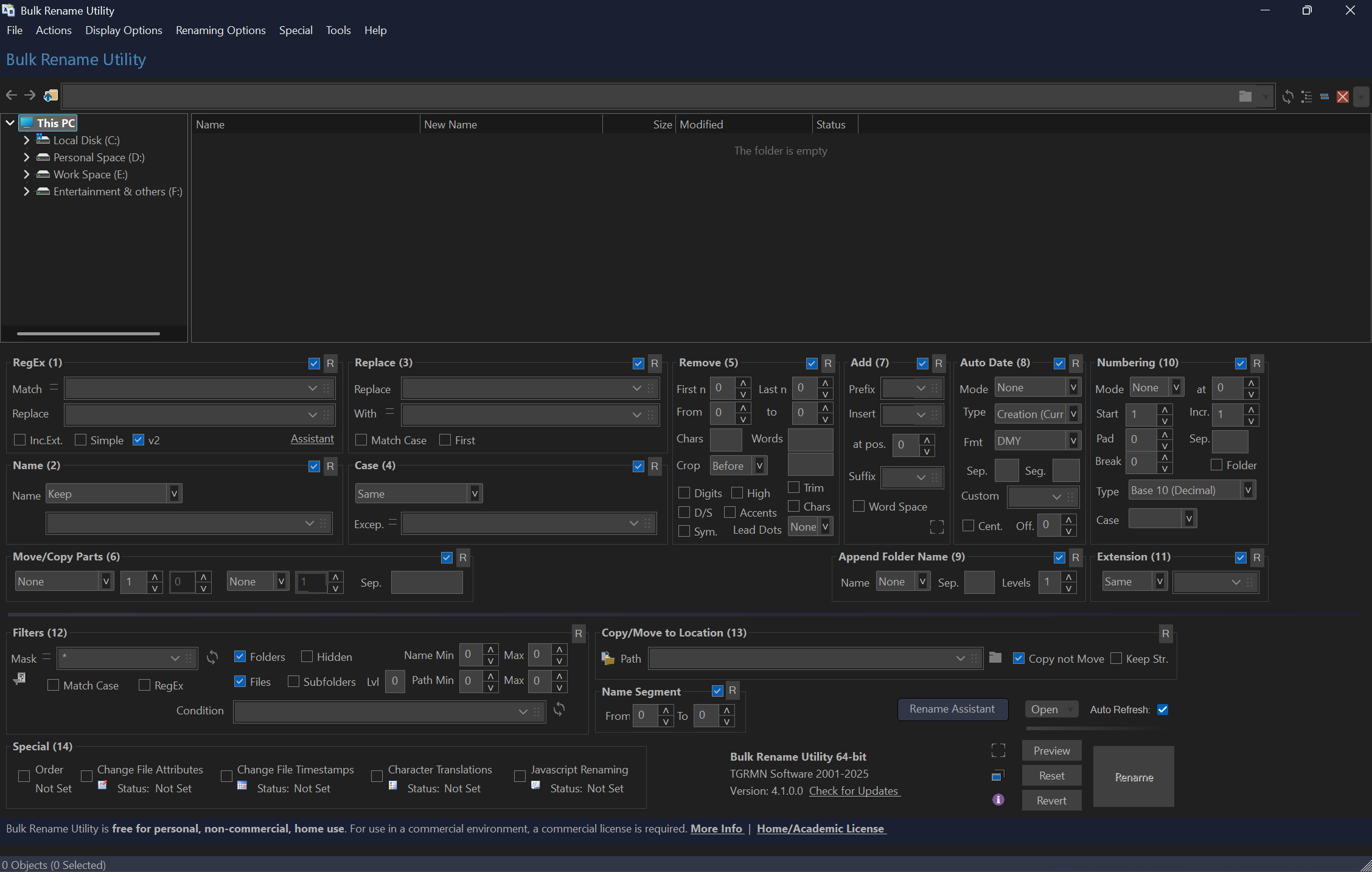
The top-left panel is your file browser. Use it to navigate to the folder containing your photos or documents. Once you select a folder, the files will appear in the main center window. Take a moment to look at the "New Name" column; this shows you what the files will look like after your changes.
3. Core Action Step
To rename files, you must first select them in the center window. You can press Ctrl+A to select everything in the folder.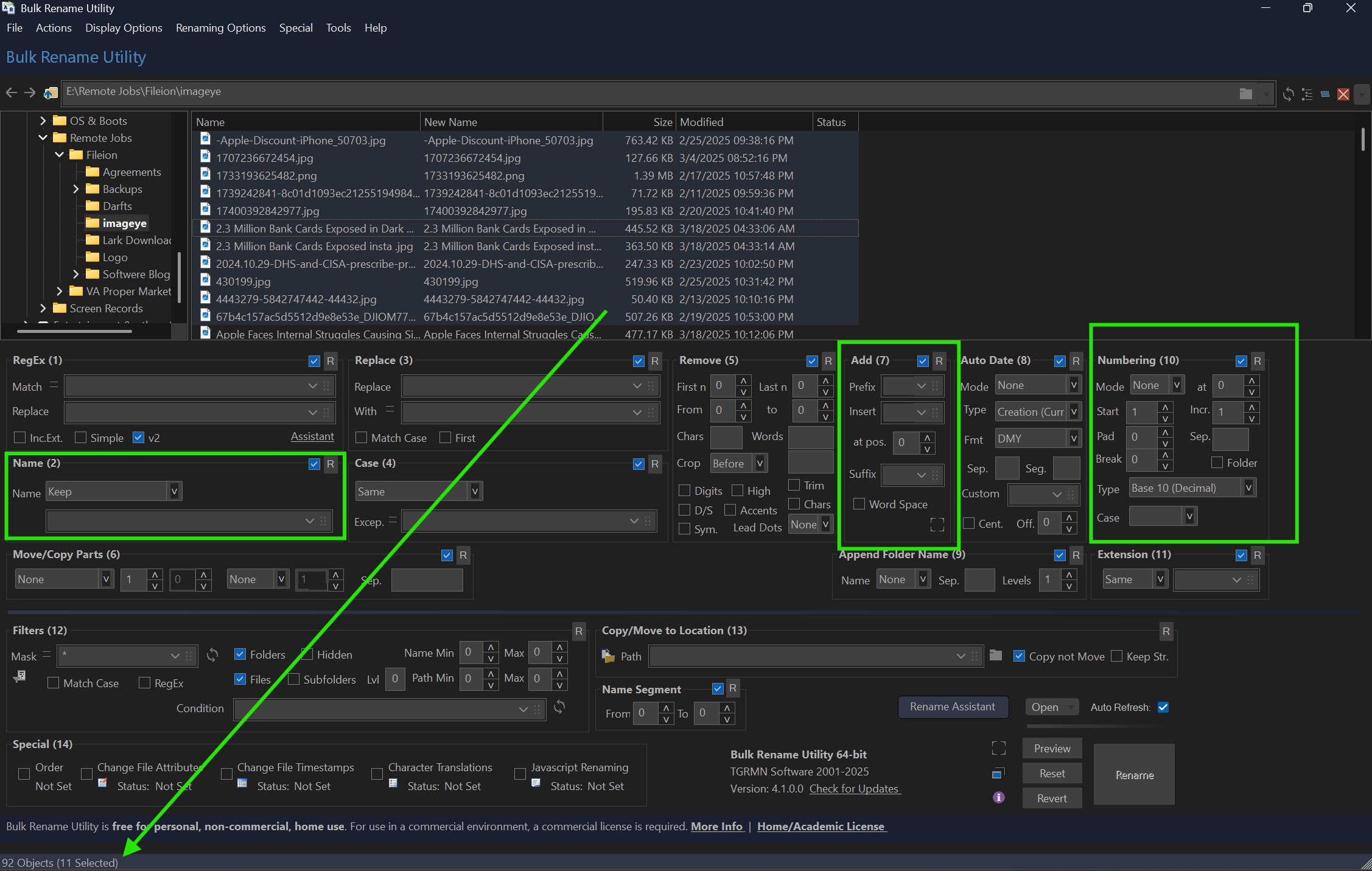
Go to Section 2 (Name) and set it to "Fixed" if you want a completely new name, or leave it as "Keep" to modify the existing name. For example, if you are organizing vacation photos, go to Section 7 (Add) and type "Italy_Trip" in the "Prefix" box. Then, go to Section 10 (Numbering) and set the mode to "Suffix." This will name your files "Italy_Trip1," "Italy_Trip2," and so on.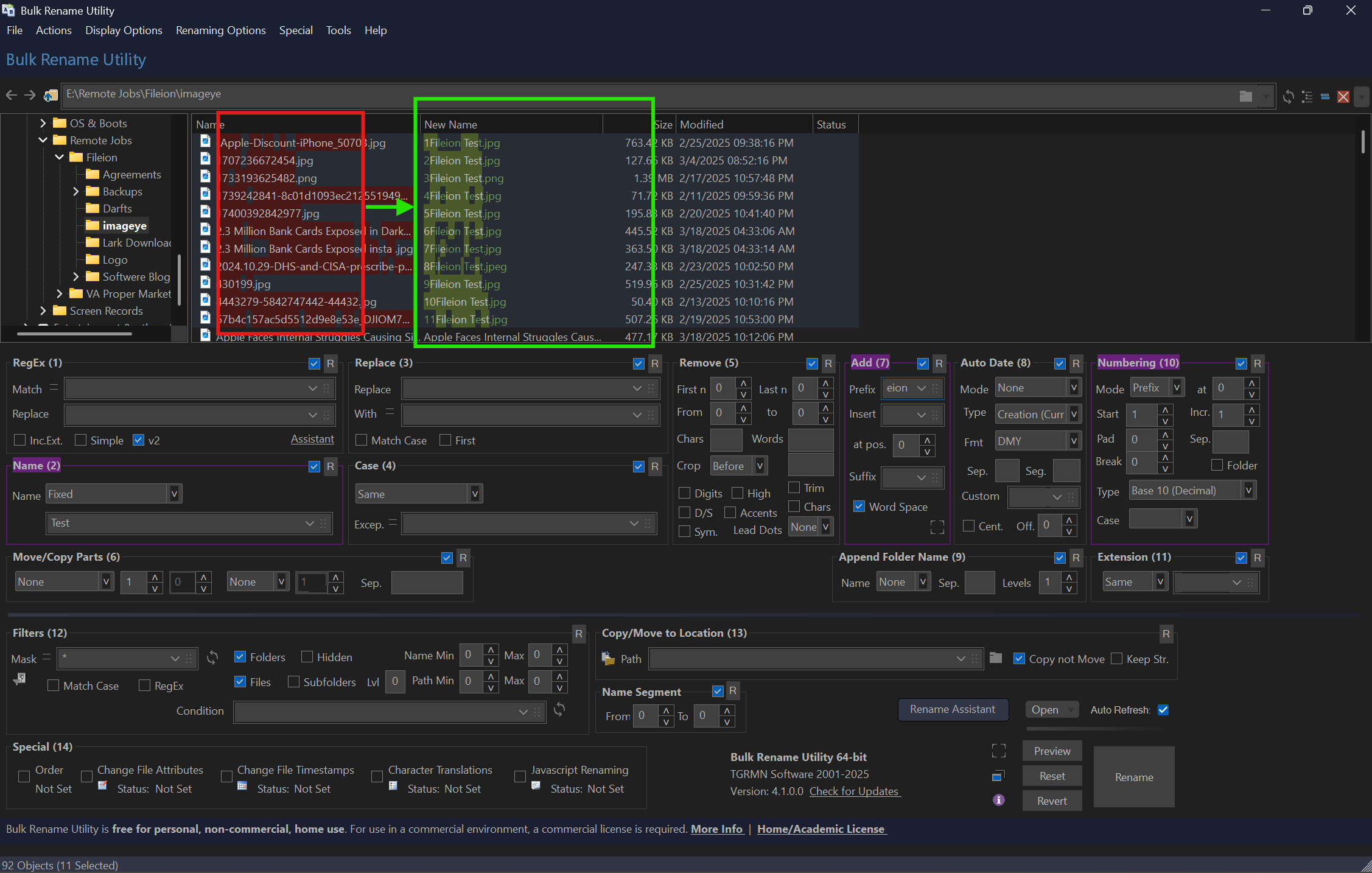
4. Customization & Optimization
If you are organizing photos, use Section 8 (Auto Date). You can choose "Taken (Digitized)" to name files based on when the photo was actually shot. This is much better than using the download date.
For documents, you might want to use Section 4 (Case). This allows you to quickly change all file names to UPPERCASE, lowercase, or Title Case. Consistent casing makes your folders look much cleaner.
5. Finalizing & Saving
Check the "New Name" column one last time. If everything looks correct, look for the large "Rename" button in the bottom-right corner.
Click "Rename." A confirmation box will appear. Click "OK" to proceed. The software will process all the files instantly. You can now open your Windows File Explorer to see your perfectly organized files.
Quick Tips
-
Reset Often: If you get confused by the rules, press the "Reset" button to clear all sections and start fresh.
-
Select Specific Files: Hold the Ctrl key to click and select only specific files you want to change.
-
Right-Click Menu: During installation, enable the "Shell Extension" to right-click any folder and open it directly in Bulk Rename Utility.
Common Mistakes to Avoid
-
Renaming System Files: Never use this tool on files inside the Windows or Program Files folders. This can break your computer.
-
Ignoring the Preview: Always look at the "New Name" column before clicking Rename. It is easy to accidentally delete a character you meant to keep.
-
Forgetting Extensions: Be careful in Section 11 (Extension). If you accidentally change or remove the file extension (like .jpg or .pdf), your computer might not know how to open the file.
Pricing & Availability
Bulk Rename Utility is free for personal, private, and educational use. It does not contain any ads or "nag" screens.
If you plan to use the software for business or commercial purposes, you are required to purchase a commercial license.
Final Verdict
Bulk Rename Utility is an essential tool for anyone dealing with a digital mess. It looks technical, but its efficiency is unmatched once you learn the basic sections. It saves hours of manual labor and keeps your digital life professional.
If you have a messy downloads folder or thousands of unnamed photos, this tool is for you. Download Bulk Rename Utility from Fileion today and start organizing your files faster.
Click here to download Bulk Rename Utility
FAQs
Q1: Does Bulk Rename Utility work on Mac?
Ans: No, this software is built specifically for Windows. Mac users usually use the built-in "Rename" feature in Finder or third-party apps like "A Better Finder Rename."
Q2: Can I undo a rename?
Ans: Yes. If you haven't closed the program, you can usually find an "Undo" option in the "Actions" menu. However, it is always safer to check your preview before hitting the final button.
Q3: Is the software safe to use?
Ans: Yes, Bulk Rename Utility is a well-known, legitimate tool. It does not contain malware. Always ensure you download it from a trusted source like our website.
Q4: Can I rename folders as well as files?
Ans: Yes. You can select folders in the browser and apply the same naming rules to them as you would for files.
Q5: Can I save my renaming rules for later?
Ans: Yes. You can save your current configuration as a "Bulk Rename Criteria" (.bru) file. This is perfect if you have a specific way you like to organize monthly reports or photo uploads.
Comments
Let us know about your thoughts
Explore more articles related to Bulk Rename Utility
Here you will find all the latest tips and tricks about Bulk Rename Utility. Also you will get many solution of problems which you may face while using this app.

Published at: Jan 04, 2026
A Simple Guide to Renaming Hundreds of Files Instantly with Bulk Rename Utility
Imagine you just finished a photoshoot or backed up years of family phone clips. You...


Rename Smarter, Not Harder
Bulk Rename Utility is a powerful, free tool for Windows that lets you batch rename hundreds or thousands of files and folders instantly. Trusted by professionals and hobbyists alike, it's perfect for media managers, producers, and anyone handling large file sets. It’s free for personal use, lightweight, and packed with powerful options including regex, numbering, and EXIF tag support.